
Your First Program
Two small programs to get started: the first one colors the screen's background, the second one writes text on it. Each is shown on the Commodore 64 and on the PC Engine, with the same functions.
One library, several machines
Each machine has its own hardware: the PC Engine displays tiles with 16
palettes of 16 colors, the Commodore 64 a character screen with 16 fixed colors.
Simple8 does not hide these differences, but its libraries give the same
names to the same services from one machine to the next. Once you have learned
print or setCursor on one machine, you can use them everywhere.
You call a library function with the library name, a dot, then
the function name: vic.print(…) on the C64, vdc.print(…) on the
PC Engine. The library name is often that of the machine's video chip:
the C64's VIC-II, the PC Engine's VDC, the NES's PPU.
The text library, screentext, is the first example. Its
main functions are the same everywhere:
| Function | Role |
|---|---|
initScreen() | prepares the screen for displaying text |
clearScreen() | clears the screen and moves the cursor back to the top left |
setCursor(x, y) | places the cursor: column x, row y |
setFontColor(n) | chooses the text color |
print("…") | writes text at the cursor position |
putChar(c) | writes a single character |
From one machine to another, only the library name and a few hardware-related details change:
| Machine | Library | Colors | Specifics |
|---|---|---|---|
| Commodore 64 | vic.screentext | vic.setBackgroundColor, vic.setBorderColor | font built into the machine |
| PC Engine | vdc.screentext | vce.setPalette | font must be provided |
| NES | ppu.screentext | ppu.setBackgroundColor, ppu.setPalette | initText() and clearText(), no setFontColor |
| Amstrad CPC | screen.screentext | gatearray.setInk, gatearray.setBorder | initScreen(mode): 20, 40 or 80 columns |
This course explains these common functions and illustrates them on one or two machines, most often the Commodore 64 and the PC Engine.
Which libraries should you load?
A program only loads the libraries it uses, with
addlib dossier.fichier;. The full list of a machine's libraries,
with their functions, will be given in that machine's own documentation. You can also
browse it in libs8/, for example libs8/nec/pce/ for the
PC Engine.
The most common ones exist on most machines:
| For… | Commodore 64 | PC Engine | NES | Amstrad CPC |
|---|---|---|---|---|
| display | vic.base | vdc.base, vce.base | ppu.base | gatearray.gatearray |
| text | vic.screentext | vdc.screentext | ppu.screentext | screen.screentext |
| sprites | vic.sprite | vdc.sprite | ppu.sprite | sprite.mode1 |
| scrolling | vic.scroll | vdc.scroll | in ppu.base | tile.scroll |
| the joypad | io.base | io.base | io.base | io.base |
| sound | sid.base | psg.base | apu.base | sound.base |
The name you write before the dot to call a function is set by the library
itself. It is often the chip's name (vic., vdc.,
ppu.), but sprites, scrolling and the joypad are called the same
way everywhere: sprite., scroll. and io..
A few libraries are written for all machines at once, and stored at the
root of libs8/: this is the case of math.bcd, for counting
scores in decimal.
One documentation per machine. What is specific to a machine (its memory, its sprites, its sound, the functions only it has) will be described in documentation specific to each architecture, with the list of its libraries.
Creating the project
With Simple8 IDE
File → New Project… (⇧⌘N) asks for three
things: the project name (for example Bonjour), the architecture
(commodore.c64 or nec.pce) and the folder to store it in. The IDE creates
the Bonjour/ folder with a ready-made main.s8p file.
Besides main(), this template contains an
initContext() function. We will see it in the chapter on contexts: for
now, you can leave it empty or delete it.
By hand
A project is just a folder: simply create Bonjour/ and write a
main.s8p file in it with a text editor. You then run the compilation
from that folder:
cd Bonjour
java -jar /chemin/vers/LitleCompilator.jar main.s8p
The skeleton of a program
Here is the smallest possible Simple8 program. It does nothing, but it compiles:
// The smallest Simple8 program
architecture nec.pce;

unit {
    main() {
        // the program starts here
    }
}architecturesays which machine the program is written for. It is always the first statement in the file.addlib, right after it, loads the libraries you need (none here).unit { … }is the main unit, the block that contains the program. All variables and all functions are stored in units: there are no global variables.main()is the entry point: this is where your program starts.- Everything after
//up to the end of the line is a comment.
What happens at startup
When you turn the machine on, main() is not what runs first.
Each architecture has its own boot code, boot.asm, stored
in libs8/ (libs8/nec/pce/boot/boot.asm for the PC Engine). The
compiler adds it to every program.
main().boot.asminitializes the machine: the processor, the memory, the initial values of the variables, the video chip…- Then it calls the program's functions, and in particular
main(). - When
main()ends,boot.asmtakes over again and keeps the machine running in an endless loop: the program does not “stop”, and the screen keeps what you put on it.
For now, only main() matters to us. We will see in the chapter
on contexts that boot.asm also calls other functions of the
program.
Step 1: the background color
First program: turn the screen's background blue. The C64 also has a border around the screen, which we turn black.
On the Commodore 64
// My first program: the background color (Commodore 64)
architecture commodore.c64;

addlib vic.base;

unit {
    main() {
        vic.setBorderColor(0);          // black border
        vic.setBackgroundColor(6);      // blue background
    }
}
The vic.base library controls the VIC-II, the C64's video chip.
Its colors are fixed and numbered from 0 to 15: 0 is black, 1 white, 6 blue.

On the PC Engine
// My first program: the background color (PC Engine)
architecture nec.pce;

addlib vce.base;

unit {
    main() {
        vce.setPalette(0, 0, RGB(0, 0, 7));     // blue background
    }
}
The PC Engine has no fixed colors: it has 32 palettes of 16
colors that you fill in yourself: 16 palettes for tiles (0 to 15) and
16 for sprites (16 to 31). The vce.base library controls
the VCE, the chip that holds them. vce.setPalette(palette, couleur, valeur)
changes one color of a palette. Color 0 of palette 0 is the screen's
background color. The PC Engine has no border: there is only this background color.
RGB(r, g, b) builds a color from its red, green
and blue components, each from 0 to 7: RGB(0, 0, 7) is a pure blue.

RGB() also works on the C64. Since the C64 has only 16 colors,
RGB(0, 0, 7) gives the number of the closest color there:
vic.setBackgroundColor(RGB(0, 0, 7)); also turns the background blue.
Compiling and running
In Simple8 IDE, ⌘R compiles the program and opens it in the machine's emulator. From the command line, in the project folder:
java -jar /chemin/vers/LitleCompilator.jar main.s8pThe compilation should end with 0 warning(s) 0 error(s). The program
is then in asm/: main.prg for the C64, main.pce
for the PC Engine, ready to open in the emulator.
Step 2: displaying text
Second program: write “BONJOUR !” (hello!) in the middle of the screen. We keep the colors from
step 1 and add the text library, screentext.
On the Commodore 64
// My first program: text on the screen (Commodore 64)
architecture commodore.c64;

addlib vic.base;
addlib vic.screentext;

unit {
    main() {
        vic.setBorderColor(0);
        vic.setBackgroundColor(6);

        vic.initScreen();               // screen in text mode
        vic.clearScreen();              // cleared
        vic.setFontColor(1);            // white text
        vic.setCursor(15, 12);          // column 15, row 12
        vic.print("BONJOUR !");
    }
}
Five calls are enough: prepare the screen, clear it, choose the text color (1, white), place the cursor, then write. The C64 screen has 40 columns and 25 rows: column 15 and row 12 put the text near the center.
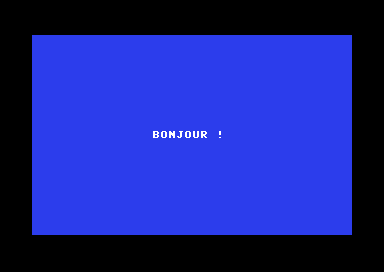
In uppercase. With the C64 font used at startup, lowercase letters are displayed as uppercase. So you write the text directly in uppercase.
On the PC Engine
The PC Engine has no built-in font: you have to provide one, as a
tile file. The repository contains one, used by the examples:
Examples/nec/pce/boulderpce/gfx/c64fontpce.bin. Copy it into the project
folder under the name font.bin.
// My first program: text on the screen (PC Engine)
architecture nec.pce;

addlib sys.resource;
addlib vce.base;
addlib vdc.base;
addlib vdc.screentext;

unit {
    const int font = addResource("font.bin");

    main() {
        int source;
        int length;

        // the screen: a 32 x 32 cell map
        vdc.setBATSize(vdc.BAT_32x32);
        vdc.initScreen();

        // the font, copied into video memory at address $1000
        resource.mapToMPR2(.font);
        source = 0x4000 + resource.getOffset(.font);
        length = resource.getLength(.font);
        vdc.writeToVRAM(source, 0x1000, length);

        // the colors
        vce.setPalette(0, 0, RGB(0, 0, 7));     // blue background
        vce.setPalette(0, 1, RGB(7, 7, 7));     // white text

        // the text
        vdc.clearScreen();
        vdc.setFontColor(0);                    // text with palette 0
        vdc.setCursor(11, 13);
        vdc.print("BONJOUR !");
    }
}
This program is longer, because it does by itself what the C64 does on its own:
const int font = addResource("font.bin");stores the font file in the ROM.fontis its identifier.- The screen: the size of its map (32 × 32 cells), then copying the font into
video memory, at address
$1000wherescreentextexpects it. sourceandlengthare local variables ofmain(): the address and size of the font in the ROM.- The colors: the background (color 0 of palette 0) and the text (color 1 of palette 0).
vdc.setFontColor(0)writes the text with palette 0, the one where we put the white.
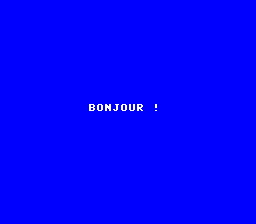
Text you can actually see. If the text color is the same as the
background color, you see nothing. With setFontColor, you choose the text's
palette: you might as well pick one whose color 1 stands out against the background.
The same functions, two machines
The calls in main() are almost word for word the same. The differences
come from the hardware:
| Commodore 64 | PC Engine | |
|---|---|---|
| The font | in the machine | a file to provide and copy into video memory |
| The text screen | 40 × 25 characters | 32 × 28 visible characters |
| The colors | 16 fixed colors | 32 palettes of 16 colors to fill in: 16 for tiles, 16 for sprites |
| The border | yes, with its own color | no, only the background color |
setFontColor(n) | n is a color (0 to 15) | n is a palette (0 to 15) |
Key points
- A program starts with
architecture, loads its libraries withaddliband contains a unit withmain(). - At startup,
boot.asminitializes the machine and then callsmain(). - The libraries of the different machines share the same function names:
initScreen,clearScreen,setCursor,print… - What differs comes from the hardware: the font, the screen size, the way colors are defined.
Your turn
- Change the background color: another number on the C64, other
RGBvalues on the PC Engine.Show solutionHide solution
On the Commodore 64, just give
vic.setBackgroundColoranother number. The 16 colors are fixed: 0 black, 1 white, 2 red, 5 green, 6 blue, 7 yellow… Here, 2 gives a red background.On the Commodore 64
// My first program: the background color (Commodore 64)
architecture commodore.c64;

addlib vic.base;

unit {
    main() {
        vic.setBorderColor(0);          // black border
        vic.setBackgroundColor(2);      // red background
    }
}
Number 2: a red background. On the PC Engine, you choose the color yourself with
RGB(r, g, b), each component ranging from 0 to 7. A lot of red, a little green and no blue give orange:RGB(7, 4, 0). Try other mixes:RGB(7, 7, 7)is white,RGB(0, 0, 0)black,RGB(3, 3, 3)a gray.On the PC Engine
// My first program: the background color (PC Engine)
architecture nec.pce;

addlib vce.base;

unit {
    main() {
        vce.setPalette(0, 0, RGB(7, 4, 0));     // orange background
    }
}
RGB(7, 4, 0): an orange background. - Place the text at the top left of the screen.
Show solutionHide solution
The top-left corner is column 0 and row 0: positions are counted from 0, not from 1. So you just replace the two numbers in
setCursorwith0, 0. The rest of the program does not change.On the Commodore 64
main() {
    vic.setBorderColor(0);
    vic.setBackgroundColor(6);

    vic.initScreen();               // screen in text mode
    vic.clearScreen();              // cleared
    vic.setFontColor(1);            // white text
    vic.setCursor(0, 0);            // column 0, row 0: top left
    vic.print("BONJOUR !");
}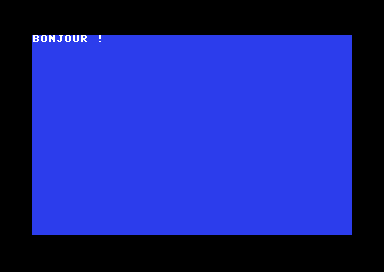
The text at column 0, row 0. On the PC Engine
// the text
vdc.clearScreen();
vdc.setFontColor(0);                    // text with palette 0
vdc.setCursor(0, 0);                    // top left
vdc.print("BONJOUR !");
On the C64, the text touches the black border. On the PC Engine, there is no border: the text touches the edge of the picture.
- Add a second line of text, below the first one.
Show solutionHide solution
After
print, the cursor stays to the right of the written text. To write below it, you move it withsetCursor: same column, next row (one row more). You can then callprinta second time.On the Commodore 64
main() {
    vic.setBorderColor(0);
    vic.setBackgroundColor(6);

    vic.initScreen();               // screen in text mode
    vic.clearScreen();              // cleared
    vic.setFontColor(1);            // white text
    vic.setCursor(15, 12);          // column 15, row 12
    vic.print("BONJOUR !");
    vic.setCursor(15, 13);          // same column, next row
    vic.print("SIMPLE8");
}
On the PC Engine
// the text
vdc.clearScreen();
vdc.setFontColor(0);                    // text with palette 0
vdc.setCursor(11, 13);
vdc.print("BONJOUR !");
vdc.setCursor(11, 14);                  // same column, next row
vdc.print("SIMPLE8");
To leave an empty line between the two texts, you would add 2 to the row number instead of 1.
- On the PC Engine, write this second line in another color: fill
color 1 of palette 1 with
vce.setPalette(1, 1, …), then callvdc.setFontColor(1)before writing it.Show solutionHide solution
Color 1 of a palette is the color of the font's letters. Palette 0 already has white as color 1; we put yellow in color 1 of palette 1. Then
vdc.setFontColor(1)makes the following text use palette 1. What is already on the screen does not change: each cell keeps the palette it was written with.// the colors vce.setPalette(0, 0, RGB(0, 0, 7)); // blue background vce.setPalette(0, 1, RGB(7, 7, 7)); // palette 0: white text vce.setPalette(1, 1, RGB(7, 6, 0)); // palette 1: yellow text // the text vdc.clearScreen(); vdc.setFontColor(0); // text with palette 0 vdc.setCursor(11, 13); vdc.print("BONJOUR !"); vdc.setFontColor(1); // the rest with palette 1 vdc.setCursor(11, 14); vdc.print("SIMPLE8");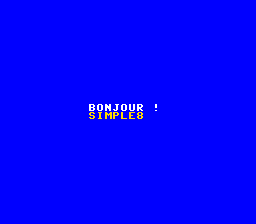
Two lines, two palettes. Color 0 of palette 1 does not need to be filled in: color 0 of every tile palette is transparent, and it is color 0 of palette 0, the background, that shows behind the letters.